What Task Manager Does & Why It Matters for Performance
Ever opened your laptop, clicked a few things, and suddenly everything’s crawling? Apps freeze, the fan kicks into high gear, and you’re wondering what just happened. This is exactly when Task Manager becomes your best friend.
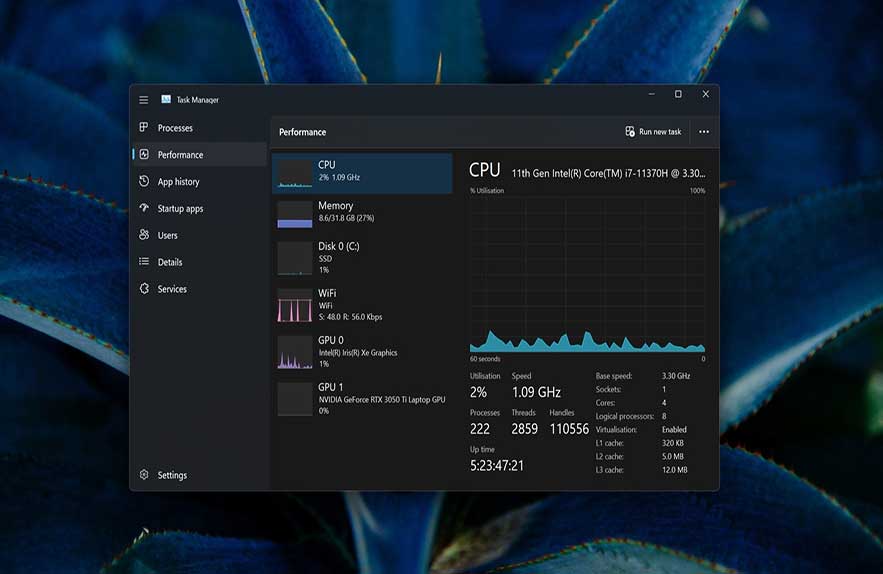
The Process Manager isn’t just a way to close frozen apps — it’s a full control panel for your PC’s performance. It shows you what’s running, what’s using your memory, how busy your CPU is, and even how your disk and network are holding up. It helps you see if that lag is coming from a specific app or if something in the background is draining resources quietly.
In Windows 11, the Task Manager has gotten a cleaner look but it still delivers the same power. With just a few clicks, you can track what’s slowing your system and shut it down if needed. You can even use the Windows Task Manager to keep an eye on GPU load — useful if you’re gaming, editing, or just multitasking hard.
Whether you’re dealing with slow boot times, apps that hang, or weird spikes in system usage, learning how to use Process Manager puts you back in control. It’s one of those simple tools that most users ignore — until things go wrong.
Next up, let’s go over how to open Task Manager in a few quick ways. You’ve got more options than you might think.
Now that you know what Task Manager does, let’s talk about how to open it — because depending on your situation, one method might be easier than another. Ever had your system freeze so badly that you couldn’t even click the Start menu? That’s when knowing a fast keyboard shortcut really pays off.
The most direct way is to press Ctrl + Shift + Esc. This is the official task manager shortcut, and it brings the window up instantly. Another solid option is Ctrl + Alt + Delete, which opens a full-screen menu — from there, you can choose Task Manager even if your desktop’s frozen.
Prefer to click? Just right-click the Start button and select “Task Manager.” You can also press Windows + R, type taskmgr, and hit Enter — that’s the classic taskmgr shortcut that’s been around since the XP days.
Each method does the same thing: gives you access to one of Windows’ most useful built-in tools. Whether you’re using a mouse or a keyboard-only setup, having a reliable task manager keyboard shortcut makes it way easier to stay in control when your system misbehaves.
Coming up next — how to use Task Manager to actually speed things up by shutting down heavy apps and cleaning up your startup list.
Table of Contents
- What Task Manager Does & Why It Matters for Performance
- Ending Resource-Hungry Processes
- Task Manager Shortcuts and Tips for Daily Use
- Frequently Asked Questions (FAQ)
Ending Resource-Hungry Processes
Noticed your laptop heating up or the fan spinning like crazy — even when you’re just browsing or checking email? That’s usually a sign that some background process is hogging your system resources. Task Manager gives you a clear view of what’s going on and lets you shut down the culprits in seconds.
Open Task Manager and click on the “Processes” tab. You’ll see a live list of everything running on your system. Click the top of the CPU, Memory, or Disk columns to sort by usage. The apps eating the most resources will rise to the top. This is where you’ll usually find culprits like web browsers, games, or even buggy background apps.
If something looks suspicious — like a program you’re not using that’s eating 80% of your CPU — click it once and hit “End Task.” Don’t worry, you’re not breaking anything. This just tells Windows to force-close the process. It’s safe to do for regular apps, but avoid touching anything labeled “Windows” or “System,” since those are critical for your PC’s stability.
Whether you’re troubleshooting, gaming, or just trying to cool things down, learning how to use Task Manager like this can save you from reboots, crashes, and slowdowns. It’s a quick way to regain control when your computer starts acting up.
If your PC takes forever to start up, the issue might not be your hardware — it’s often just too many apps launching the moment Windows boots. Task Manager makes it easy to cut down on that clutter so you can speed things up.
Go to the “Startup” tab inside Task Manager. This is where Windows lists every app that tries to run at boot. You’ll see names, status (enabled or disabled), and something called “Startup impact” that tells you how much each app slows your system down. It’s surprisingly eye-opening.
To clean things up, right-click any app you don’t use often and choose “Disable.” Start with programs marked “High impact.” Things like cloud sync tools, update checkers, and background chat apps are often culprits. You’re not uninstalling anything — just telling Windows not to auto-launch them every time.
This kind of small change can seriously improve your boot time. If you’ve never explored this part of the system monitor before, you might be shocked by what’s slowing you down. Keep this trick in mind, especially if you notice your PC getting slower over time.
Want even more performance tips that go beyond Task Manager? Explore the full Windows 11 speed up guide to learn about RAM tuning, background app control, power plans, and deep system tweaks that help your PC run like new.
Ready to get more from Task Manager? Let’s look at a few shortcuts and quick-use tips that can make it part of your everyday workflow.
Task Manager Shortcuts and Tips for Daily Use
Once you get comfortable using process manager, it quickly becomes one of those tools you rely on without even thinking about it. Whether you’re closing frozen apps, checking system performance during a game, or troubleshooting slowdowns, knowing a few Task Manager tricks can save time and frustration.
Let’s start with shortcuts. The quickest way to open Task Manager is by pressing Ctrl + Shift + Esc. It takes you straight in without going through any extra menus — a real lifesaver when something freezes. Another option is Ctrl + Alt + Delete, then selecting Task Manager from the list. Both are great to memorize, especially if you’re in the middle of a full-screen app and your mouse isn’t responding.
If you like using the Run dialog, Windows + R followed by taskmgr is another solid trick. It opens the Windows Task Manager directly, and it’s especially handy when troubleshooting remote systems or setting up batch files. That’s what people often refer to as the “taskmgr shortcut.”
But shortcuts are just the beginning. You can also leave it open while gaming, editing video, or stress testing your machine. Just minimize it to the system tray, and it’ll keep running in the background. If you want live stats at a glance, right-click on the graph under the Performance tab and choose “Summary view” — it shrinks the window into a real-time monitor you can move anywhere on your screen.
Ever needed to keep tabs on RAM or CPU during a heavy workload? The task manager shortcut combo and a few display tweaks make it easy to see what’s happening in real time without launching extra apps.
Once you’ve got the hang of it, Task Manager becomes more than a panic button. It’s a day-to-day utility that gives you insight into how your system behaves — and helps you keep everything running smoothly without guesswork.
Frequently Asked Questions (FAQ)
How do I open Task Manager?
The quickest way is by pressing Ctrl + Shift + Esc. It launches Task Manager instantly. You can also press Ctrl + Alt + Delete and choose it from the menu. Prefer to type it? Use Windows + R, type taskmgr, and hit Enter. All of these work whether you’re on Windows 10 or 11.
How do I go to Task Manager if the screen is frozen?
Press Ctrl + Alt + Delete — this brings up a menu even if your desktop is unresponsive. From there, you can access Task Manager. If that doesn’t work, try the task manager keyboard shortcut Ctrl + Shift + Esc directly. It’s often more reliable when your system is barely responding.
What’s the difference between Taskbar Manager and Task Manager?
Actually, there’s no such thing as “Taskbar Manager.” Most people mean Task Manager, but get the name confused. The taskbar is where your running apps and Start button live — Task Manager is the tool you use to monitor and manage processes, apps, and performance.
Why won’t Task Manager open on my PC?
If Task Manager won’t open, try restarting your computer first. Still no luck? Run taskmgr from the Run box (Windows + R) or check if it’s being blocked by group policies in enterprise environments. You can also try opening it from Safe Mode if your system is locking up.
Is there a way to reset Task Manager?
There’s no reset button, but you can close and reopen it to refresh its data. If you’ve changed the view layout or tabs are missing, just double-click anywhere on the border to bring everything back. This trick resets it to its default appearance.

Georgijus
Founder of LivePCTech, Georgijus is a full-stack engineer with 16+ years of experience in hosting, DevOps, Linux/Windows systems, and backend software development.
→ Learn more about Georgijus