Windows Tips

Boost your Windows performance with tips, fixes, and setup guides for Windows 11 and beyond. Easy to follow, always useful.

Windows 11 speed up guide with performance and cleanup tips

Ultimate Windows 11 Speed up Guide (Speed, Cleanup & Control)

Ever boot up your computer and wonder why it feels a little more sluggish than the day you bought it? If “Windows 11 speed up” has ever crossed your mind, you’re not alone. Here’s the thing: even a sparkling new machine can start to lag after a few updates, dozens of app installs, and way too many browser tabs left open overnight. The truth is, most people notice their system isn’t as zippy as it once was—boot times drag, apps…

Ultimate Windows 11 Speed up Guide (Speed, Cleanup & Control) Read More »

Disable Xbox Game Bar in Windows 11 for better performance

Disable Xbox Game Bar in Windows 11 — Gain FPS & Kill Lag

Want a faster, cleaner Windows 11 experience — especially when gaming or multitasking? One of the easiest ways to shave off background load is to disable Xbox Game Bar. While it’s a flashy feature with some cool tools, most users never touch it. And if you don’t use it, it’s quietly eating resources for no reason. Xbox Game Bar is an overlay built into Windows 11 that’s designed for quick screen recording, audio controls, FPS monitoring, and social tools. You…

Disable Xbox Game Bar in Windows 11 — Gain FPS & Kill Lag Read More »

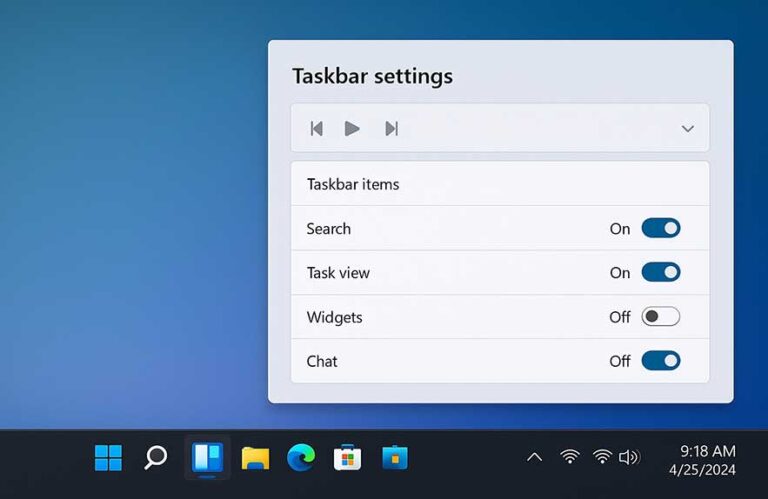
Remove widgets panel in Windows 11 desktop settings

How to Remove Widgets Panel in Windows 11

Widgets Windows 11 includes are meant to make your desktop smarter — showing weather updates, news headlines, and more right from the taskbar. But let’s be honest: most people never use them. That panel sits quietly in the background, popping up with ads and news you didn’t ask for, and eating up system resources whether you want it or not. It loads at startup, uses RAM and CPU power, and often gets in the way more than it helps. The…

How to Remove Widgets Panel in Windows 11 Read More »

Windows Ultimate Performance Mode enabled in power settings

How to Enable Performance Mode in Windows 11 for Maximum Speed

Windows 11 offers more control over system performance than many users realize — and one of the core tools is the power plan. These aren’t just about battery life. Power plans control how your CPU behaves, when your screen sleeps, how quickly your drives spin down, and whether background apps get priority or not. If you’ve ever wondered how to unlock faster performance without changing hardware, this is where it starts. For a full list of speed-up tricks, see our…

How to Enable Performance Mode in Windows 11 for Maximum Speed Read More »

Disable VBS Windows 11 settings for performance boost

How to Turn Off VBS (Virtualization-Based Security) in Windows 11

Disable VBS Windows 11 if you’re chasing performance — but before you do, it helps to understand what it actually does. VBS stands for Virtualization-Based Security, and it uses hardware-powered virtualization to isolate sensitive parts of your operating system. Think of it like a security vault inside your memory that malware and low-level threats can’t easily touch. At the heart of this system is a feature called Memory Integrity, also known as HVCI. It ensures that drivers and core Windows…

How to Turn Off VBS (Virtualization-Based Security) in Windows 11 Read More »

Disable transparency effects Windows 11 settings interface

How to Disable Transparency Effects in Windows 11

Disable transparency effects Windows 11 if you’re aiming for a faster, cleaner experience — but what exactly are you turning off? These effects show up across the operating system as soft, blurry backgrounds and translucent panels. From the Start menu and Taskbar to Settings and context menus, Windows 11 uses layered visuals and acrylic blur to add style and depth. This sleek look comes from Microsoft’s Fluent UI, and while it may feel modern and polished, it uses real system…

How to Disable Transparency Effects in Windows 11 Read More »

Disk Cleanup tool in Windows 11 interface clearing storage

How to Clean Up Hard Drive Space Using Storage Sense in Windows 11

Disk cleanup Windows 11 isn’t just a housekeeping task — it’s a performance booster. When your hard drive fills up, everything slows down. Apps freeze, updates fail, and your system starts lagging in ways that make everyday tasks feel heavier than they should. If you’ve seen low storage warnings, or Windows refuses to install an update, it’s time to take action. There are plenty of signs that your system is low on space. You might see your downloads folder bloated…

How to Clean Up Hard Drive Space Using Storage Sense in Windows 11 Read More »

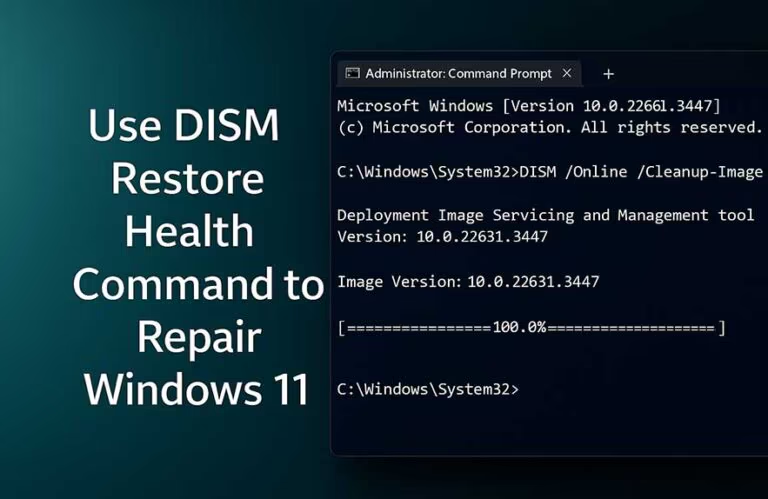
DISM restore health command in Windows 11 terminal

How to Repair Windows 11 Using the DISM Restore Health Command

If your PC feels unstable, keeps failing to update, or throws system errors that won’t go away, it could be more than just a bug — your Windows image might be damaged. That’s where DISM comes in. Built into Windows 11, DISM stands for Deployment Image Servicing and Management, and it’s designed to repair the underlying system image that other repair tools rely on. Normally, when something feels off, you might run the System File Checker (SFC) to scan for…

How to Repair Windows 11 Using the DISM Restore Health Command Read More »

SFC Scannow command running in Windows 11 terminal

How to Check and Fix Corrupt System Files in Windows 11

When your system starts acting strangely, the sfc scannow command is one of the fastest ways to check for broken system files. Windows depends on thousands of these files to run smoothly — from your desktop to your updates. But when even one becomes corrupted, things can start falling apart quickly. Apps crash, menus disappear, updates fail, or you might even see the dreaded blue screen. Corruption usually sneaks in silently. It could come from a bad shutdown, a power…

How to Check and Fix Corrupt System Files in Windows 11 Read More »

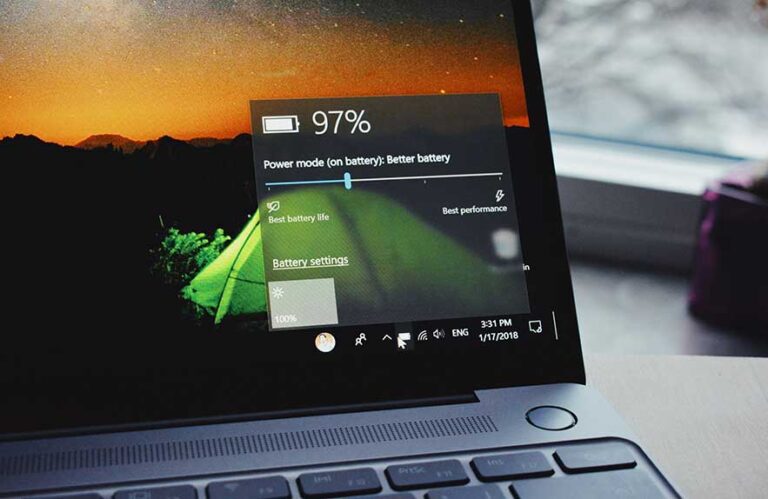
Optimized battery charging on Windows 11 laptop screen

Battery Optimization on Windows 11 Laptops: Full Guide

We’ve all been there — leaving the laptop plugged in all day while working or watching videos. It’s convenient, sure, but over time, keeping your battery constantly full can quietly wear it down. That’s exactly what optimized battery charging in Windows 11 is designed to fix. Instead of rushing to 100% and holding it there, this feature learns your routine. If Windows sees that you stay plugged in most of the time, it’ll slow things down and keep your battery…

Battery Optimization on Windows 11 Laptops: Full Guide Read More »