What Are Transparency Effects in Windows 11?
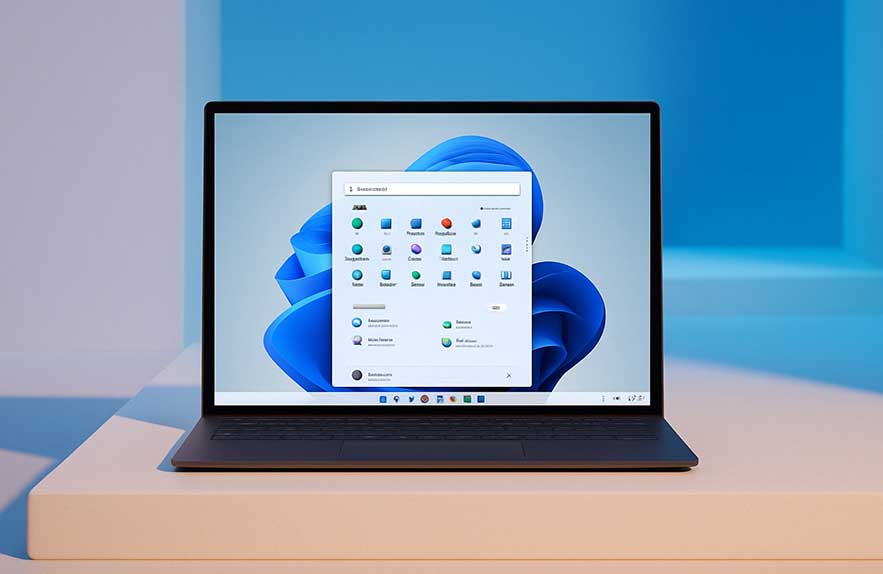
Disable transparency effects Windows 11 if you’re aiming for a faster, cleaner experience — but what exactly are you turning off? These effects show up across the operating system as soft, blurry backgrounds and translucent panels. From the Start menu and Taskbar to Settings and context menus, Windows 11 uses layered visuals and acrylic blur to add style and depth.
This sleek look comes from Microsoft’s Fluent UI, and while it may feel modern and polished, it uses real system resources. That might not be a big deal on a high-end PC, but if you’re using a laptop, older desktop, or virtual machine, those animations and blurred elements can slow things down. That’s why many users head straight to the windows 11 transparency settings to turn off transparency windows 11 and focus on raw speed instead.
The effects are most noticeable in the Settings app, notification panel, and other system menus. They’re subtle, but your graphics processor still has to work to render them. If you’re noticing lag or shorter battery life, turning them off could give your system a noticeable boost.
Transparency might look cool, but it’s not essential. Knowing what these visuals are — and how to disable them — gives you more control over both the appearance and performance of your PC. Let’s take a closer look at what’s happening behind the blur.
Turning off visual effects might not sound like a game-changer, but disable transparency effects Windows 11 and you’ll likely notice your system feeling just a bit snappier — especially if you’re using older hardware or a budget laptop. These subtle visuals look sleek, but they pull resources from your graphics processor, which can slow things down when you least expect it.
Want longer battery life? This is a smart move. Transparency effects constantly redraw parts of your screen to keep that blurred look active. On portable devices, that adds up. Disabling them reduces the load, which means more battery for things that actually matter — like getting through your workday without a charger.
Another reason to disable these visuals is accessibility. For users with motion sensitivity or visual clarity issues, the layered blur can be distracting or even uncomfortable. If you’ve ever felt eye strain after using Windows for long periods, tweaking your windows 11 performance settings might be more helpful than you’d expect.
So whether you’re trying to squeeze more life out of a mid-range laptop or just want a sharper, faster desktop feel, this small change can go a long way. Go ahead and disable transparency effects Windows 11 offers — it’s one of the quickest wins in system optimization.
Table of Contents
- What Are Transparency Effects in Windows 11?
- Turn Off Transparency via Personalization Settings
- Combine Transparency Toggle with Other Visual Settings
- Frequently Asked Questions (FAQ)
Turn Off Transparency via Personalization Settings
Ready to cut the blur and reclaim some speed? One of the easiest ways to turn off transparency Windows 11 uses is through the Personalization settings. This method is simple, fast, and instantly shows the difference — especially if your machine has been feeling a little sluggish lately.
Here’s how to do it: open the Settings app, head to Personalization, then click Colors. Right near the top, you’ll see a toggle labeled Transparency effects. Flip it off. Just like that, the acrylic blur is gone from your Start menu, Taskbar, Settings window, and other system elements.
The change is immediate. Menus become solid and snappy, with fewer layered visuals for your PC to render. If you’re working with limited RAM or a low-powered integrated GPU, this small tweak in your windows 11 transparency settings can noticeably reduce interface lag.
Think of it this way — you’re not losing anything critical. You’re just streamlining the visuals so Windows runs with less overhead. If you ever want that glossy look back, just return to the same place and flip the switch. But for now, go ahead and turn off transparency Windows 11 provides — your system might just thank you with smoother performance.
If the standard method didn’t quite click for you, there’s another way — and it’s just as effective. You can disable transparency effects Windows 11 offers through the Accessibility settings. This path is especially helpful if you’re setting up a PC for someone who needs simpler visuals or prefers fewer distractions.
Start by opening Settings, then go to Accessibility on the left-hand side. Under Visual effects, you’ll see the toggle for Transparency effects. Flip it off. Just like that, you’ve cut the acrylic blur across the system without diving through Personalization menus.
So why use this route instead? It’s quick, clean, and ideal if you’re already adjusting other accessibility preferences. Some users find this layout more intuitive than the usual path — especially when they’re focused on optimizing interface clarity, battery life, or general comfort.
Pairing this with other tweaks like reduced animations can make a real difference. It’s a core part of how to reduce visual effects Windows 11 relies on to look good — but not necessarily run better. For anyone looking to optimize, disable transparency effects Windows 11 has by using this method and enjoy a faster, more focused setup.
Combine Transparency Toggle with Other Visual Settings
Turning off transparency is a great first move, but there’s more you can do to get a faster, cleaner experience. Windows 11 comes packed with extra visual effects — things like animation fades, shadows under windows, and motion transitions. These features may look slick, but they can slow things down, especially on older or lower-spec machines.
To take things further, head to Settings, then go to Accessibility and look under Visual Effects. There, you’ll find options to reduce animations and remove other flair that uses up system resources. This works perfectly alongside your earlier change to disable transparency effects Windows 11 applies by default.
If you want deeper control, you can also tweak performance visuals through the classic Control Panel. Search for “Adjust the appearance and performance of Windows,” and open the Visual Effects tab. From there, uncheck items like “Animate windows when minimizing and maximizing” or “Show shadows under windows.” These fall under the broader category of Windows 11 performance settings and can give your system a noticeable boost.
Not sure where to begin? Start with turning off transparency, then reduce motion effects and shadows. These simple steps add up quickly — and the best part is, they don’t take away anything essential. You still get a clean interface, just without the slowdown.
Transparency effects may look good, but they’re not essential — and sometimes turning them back on makes sense. If you’re a designer, presenter, or just someone who appreciates a polished interface, re-enabling transparency might be worth it once performance is no longer an issue. It adds a modern, layered feel that fits Windows 11’s overall style.
Want to restore the blur? Just head back to Settings > Personalization > Colors, or take the accessibility route under Settings > Accessibility > Visual Effects. Both paths will let you toggle transparency effects back on instantly. No reboot required — the change takes effect the moment you flip the switch.
Of course, if you’re planning to re-enable visual polish, it’s smart to keep other tweaks in check. Don’t forget to revisit your windows 11 performance settings or balance out animations so they don’t overburden your hardware. The trick is finding a setup that feels smooth without sacrificing too much style.
There’s no one-size-fits-all approach. Try different combinations, see how your PC responds, and adjust as needed. Windows gives you control over the look and feel — use it to your advantage and tailor your desktop for both comfort and performance.
Want more performance tips beyond just visual settings? Explore our full Windows 11 speed up optimization guide to learn how to boost speed, reduce system load, and get the most from your machine without any bloatware or risky tools.
Frequently Asked Questions (FAQ)
What are transparency effects in Windows 11?
Transparency effects in Windows 11 create a glass-like blur on parts of the interface — like the Start menu, Taskbar, and Settings windows. It’s part of Microsoft’s Fluent Design, meant to make things look sleek and modern. But while nice to look at, these effects do use up system resources.
Why would I disable transparency effects in Windows 11?
Disabling transparency can improve performance and save battery life, especially on lower-end laptops or devices with integrated graphics. It also makes things easier to read for users with motion sensitivity or vision-related accessibility needs.
How do I turn off transparency in Windows 11?
You can disable transparency effects Windows 11 includes by going to Settings > Personalization > Colors and turning off the Transparency toggle. Alternatively, use Settings > Accessibility > Visual Effects for a faster route.
Does turning off transparency affect other visual features?
It only affects background blur and layered transparency. Your theme, icons, and layout stay the same. If you want even more performance, consider reducing animations or adjusting other Windows 11 performance settings.
Can I turn transparency effects back on later?
Absolutely. You can re-enable transparency at any time using the same settings menu. The change is instant, and no reboot is required. Just toggle it back on to restore the visual polish.

Georgijus
Founder of LivePCTech, Georgijus is a full-stack engineer with 16+ years of experience in hosting, DevOps, Linux/Windows systems, and backend software development.
→ Learn more about Georgijus