What Xbox Game Bar Actually Does in Windows 11
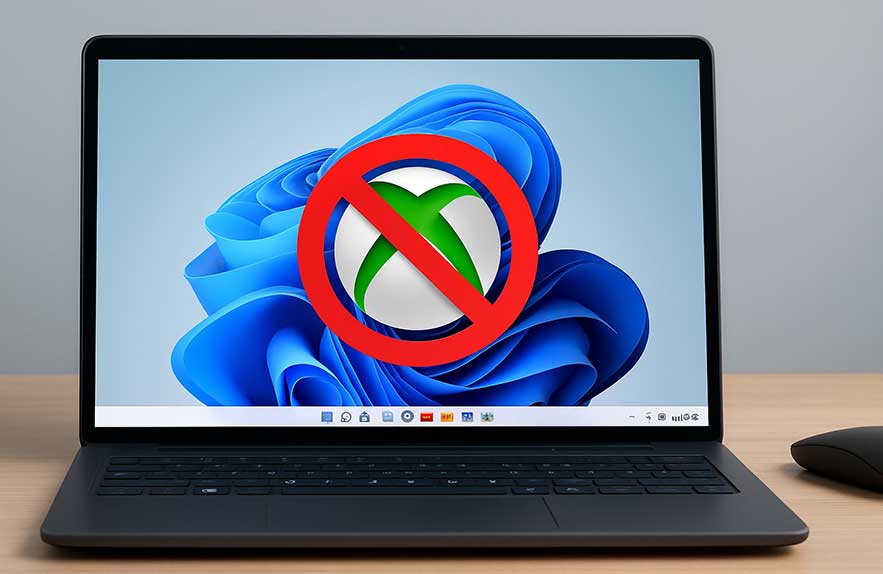
Want a faster, cleaner Windows 11 experience — especially when gaming or multitasking? One of the easiest ways to shave off background load is to disable Xbox Game Bar. While it’s a flashy feature with some cool tools, most users never touch it. And if you don’t use it, it’s quietly eating resources for no reason.
Xbox Game Bar is an overlay built into Windows 11 that’s designed for quick screen recording, audio controls, FPS monitoring, and social tools. You can summon it at any time by pressing Win + G, and it floats over whatever app or game you’re using. Sounds handy — but here’s the catch: it’s always running in the background, even if you never launch it.
It auto-starts with Windows, hooks into system processes, and sometimes causes performance dips, especially on mid-range or older PCs. And because it’s enabled by default, many people don’t even realize it’s active. The overlay can conflict with third-party recording tools or cause random stutters in games, even when you’re not actively recording or streaming.
If you’re not using it regularly, now’s the time to disable Xbox Game Bar and free up system resources. In the next step, we’ll show you how to turn it off cleanly and stop its background services — no more unnecessary overhead.
So, who should disable Xbox Game Bar — and why does it matter? If you’re a gamer, a content creator, or just someone who values every ounce of system performance, turning it off can make a noticeable difference. Xbox Game Bar may look harmless, but it runs in the background, hooks into system resources, and can quietly drag things down over time.
Gamers often report improved frame rates and smoother input response after they disable Xbox Game Bar in Windows 11. Since it captures screen activity and monitors performance, it creates overhead that can interfere with more efficient tools like NVIDIA ShadowPlay, AMD ReLive, or OBS Studio. For competitive games where every frame counts, this is one tweak worth making.
Streamers and creators also benefit. Game Bar’s built-in capture tools can conflict with third-party software or hog audio channels you need elsewhere. And if you’re on a laptop or a mid-range system, removing background overlays helps you avoid frame drops and keeps CPU temps lower. That’s why many pros choose to permanently disable Xbox Game Bar — it’s one less thing eating cycles in the background.
Still, not everyone needs to rush and turn off Xbox Game Bar. If you rely on it for Game DVR, Xbox friends lists, or basic screen recording, it’s safe to keep it running. But if you’ve never used it — or didn’t even know it was there — disabling it is one of the quickest wins for cleaner performance.
Table of Contents
- What Xbox Game Bar Actually Does in Windows 11
- Turn It Off in Settings
- Use PowerShell to Completely Remove Xbox Game Bar
- Frequently Asked Questions (FAQ)
- What is Xbox Game Bar and why is it running in the background?
- Can I disable Xbox Game Bar without uninstalling it?
- Does disabling Xbox Game Bar improve gaming performance?
- How do I completely uninstall Xbox Game Bar?
- Is it safe to remove Xbox Game Bar in Windows 11?
- Can I reinstall Xbox Game Bar after removing it?
- Is there a way to stop Game Bar from launching at startup?
- Why does Game Bar keep turning back on after updates?
Turn It Off in Settings
If you’re not using Xbox Game Bar regularly, the easiest way to shut it down is through the Settings menu. This method doesn’t remove the app completely, but it stops the overlay from launching and blocks it from reacting to keyboard shortcuts like Win + G.
To begin, go to Settings > Gaming > Xbox Game Bar. At the top of the page, you’ll see an option that says “Open Xbox Game Bar using this button on a controller.” Right below it is the real toggle you want — just switch off “Open Xbox Game Bar using the shortcut button on a controller.” Then, turn off the main toggle for the Game Bar itself.
Once you turn off Xbox Game Bar from this screen, the overlay will no longer appear when pressing Win + G. It also prevents the app from auto-launching in the background, helping you clean up RAM and reduce background clutter with zero side effects for most users.
Many gamers choose to disable Xbox Game Bar this way first before moving on to deeper cleanup. It’s quick, reversible, and gives you immediate results — especially if you’re troubleshooting performance issues or trying to stop unexpected popups during games.
Turning off Xbox Game Bar in settings is a great start, but if you really want it gone from your system, you’ll also need to block its background services. These hidden services continue running behind the scenes even after you disable Xbox Game Bar through the interface, using memory and potentially launching automatically at startup.
Here’s what to do next: open Settings > Apps > Startup. Scroll through the list and look for anything related to Xbox or Game Bar. You’ll often see entries like “Xbox Game Monitoring” or “Xbox Game Bar Services.” Toggle them off. This prevents them from loading when your PC starts, helping to permanently disable Xbox Game Bar background functions.
You can also visit Settings > Gaming > Captures and disable background recording. This stops Windows from silently capturing screen activity and using storage behind the scenes. These capture tools are tied directly to Game DVR and the overlay, so turning them off will help reduce load on your CPU and disk.
If your goal is to permanently disable Xbox Game Bar and keep your system lean, combining this with the toggle method is the way to go. And for those looking to go one step further, you can even uninstall Xbox Game Bar completely — which we’ll cover next.
Use PowerShell to Completely Remove Xbox Game Bar
If you’re done with it for good, the cleanest way to uninstall Xbox Game Bar Windows 11 includes is through PowerShell. This method removes the app from your system entirely — freeing up space, stopping background processes, and eliminating the overlay completely. It’s ideal for power users who want zero clutter and full control over installed components.
Here’s how to do it safely. First, open PowerShell as an administrator. You can do that by typing PowerShell into the Start menu, right-clicking on it, and selecting “Run as administrator.” Then paste the following command:
Get-AppxPackage *XboxGamingOverlay* | Remove-AppxPackageThis command targets the Game Bar specifically and removes it from your current Windows user account. Once complete, Xbox Game Bar will no longer appear in your Start menu, and pressing Win + G won’t launch anything.
If you ever want it back, you can reinstall it from the Microsoft Store. Just search for “Xbox Game Bar” and click Install. But unless you need Xbox features or Game DVR, most users prefer to keep it removed — especially those aiming to uninstall Xbox Game Bar Windows 11 ships with and permanently disable Xbox Game Bar across all accounts.
Before you remove Game Bar for good, it’s worth understanding what could break — and how to reverse it if needed. While most users won’t miss it, uninstalling Xbox Game Bar Windows 11 comes with by default can affect some features you might not expect.
If you use Xbox social features, like party chat or game invites through the Xbox app, removing Game Bar may cause issues. It can also interfere with Game DVR if you rely on it for automatic recording. On shared PCs, especially ones used by kids or casual gamers, it might be safer to just turn off Xbox Game Bar rather than uninstall it.
Need to bring it back? Just open the Microsoft Store, search for “Xbox Game Bar,” and click Install. Reinstalling the app restores all its features and integrations, including the Win + G shortcut. You can always disable Xbox Game Bar again if you find it gets in the way.
Bottom line: if you’re confident you won’t use it — or want to permanently disable Xbox Game Bar to streamline your system — removal is safe and reversible. Just remember where to find it in case you need it later.
Want more ways to optimize your PC beyond just disabling Xbox Game Bar? Explore our full Windows 11 speed up guide for performance tips, cleanup tricks, and advanced settings that bring your PC back to life.
Frequently Asked Questions (FAQ)
What is Xbox Game Bar and why is it running in the background?
Xbox Game Bar is a built-in overlay tool in Windows 11 that lets you capture gameplay, monitor performance, chat with Xbox friends, and take screenshots. Even if you never use it, it starts with Windows and runs quietly in the background, which can lead to unnecessary resource usage on lower-end PCs.
Can I disable Xbox Game Bar without uninstalling it?
Yes, absolutely. You can go to Settings > Gaming > Xbox Game Bar and toggle it off. This stops the overlay from launching when you press Win + G and prevents it from activating during gameplay, but it doesn’t remove the app entirely from your system.
Does disabling Xbox Game Bar improve gaming performance?
For many users, yes. Especially on mid-range or older machines, turning off Xbox Game Bar can lead to better frame rates, fewer stutters, and lower CPU/GPU usage. It also avoids conflicts with third-party tools like OBS or NVIDIA ShadowPlay.
How do I completely uninstall Xbox Game Bar?
Open PowerShell as an administrator and run the following command:
Get-AppxPackage *XboxGamingOverlay* | Remove-AppxPackageThis removes the overlay app for the current user. You can reinstall it anytime from the Microsoft Store if needed.
Is it safe to remove Xbox Game Bar in Windows 11?
Yes, it’s safe for most users. If you don’t rely on Xbox social features or Game DVR, removing the app won’t break anything critical. However, if others use your PC for gaming or Xbox integration, it might be better to just disable it instead of uninstalling completely.
Can I reinstall Xbox Game Bar after removing it?
Yes. Just go to the Microsoft Store, search for “Xbox Game Bar,” and click Install. It will restore all functions and the Win + G overlay shortcut.
Is there a way to stop Game Bar from launching at startup?
Yes. Go to Settings > Apps > Startup and disable any entries related to Xbox Game Bar. You can also turn off background recording under Settings > Gaming > Captures for full control.
Why does Game Bar keep turning back on after updates?
Some Windows updates can reset default apps or re-enable previously disabled features. If Xbox Game Bar turns itself back on, just return to Settings and turn it off again — or uninstall it using PowerShell to prevent it from coming back.

Georgijus
Founder of LivePCTech, Georgijus is a full-stack engineer with 16+ years of experience in hosting, DevOps, Linux/Windows systems, and backend software development.
→ Learn more about Georgijus