What Is CPU? Everything Beginners Need to Know
If you have ever asked yourself, what is cpu, you are not alone. This question pops up everywhere, whether you are shopping for a new computer or just wondering why your old laptop is slowing down. In the most basic terms, the CPU—or Central Processing Unit—is the part of your computer that does almost all the thinking. Just like your brain tells your body what to do, the cpu manages instructions and makes sure everything in your PC happens in the right order.
Whenever you turn on your computer, the first thing that wakes up is the cpu. Any time you open a website, type a paper for school, or play music, you are using the CPU. The answer to “what is cpu” is simple: it is the main chip inside your computer, handling calculations and command after command every single second. Without the cpu working smoothly, no computer program could run and no files would open. It makes sense that computer experts often call it the “brain of the computer.”
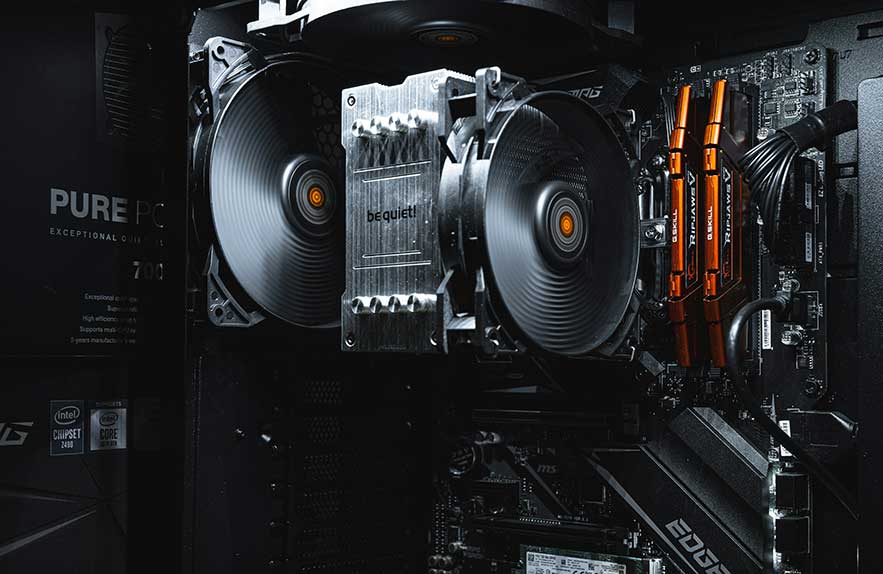
The cpu lives right at the heart of your desktop or laptop, plugged firmly into the motherboard and hidden away in the cpu cabinet. Because the cpu creates heat as it works, it usually sits under a fan or a special cooling system to keep it safe. Modern computer cases, also called cpu cabinets, are designed to protect this important piece of hardware and keep the whole system running at just the right temperature.
Understanding what is cpu and why it matters will help you know what to look for if you are ever buying a new computer, researching hardware upgrades, or troubleshooting slowdowns. The power and speed of your cpu decide how many things you can do at once, how quickly your apps respond, and how well your computer handles today’s demanding software.
A simple way to remember what is cpu is to picture it as the hub of all activity in your machine. Every email, every game, and every search starts as a set of instructions delivered straight to the cpu. The better your cpu, the faster your ideas move from your mind to the digital world. In the following sections, we’ll open up the processor, look inside at the parts that do the work, and show how your cpu is truly the engine that powers your daily tech experience.
Table of Contents
- What Is CPU? Everything Beginners Need to Know
- Core Components Inside a CPU: Understanding the Structure
- How Does a CPU Process Information? Step-by-Step
- Common CPU Problems: Overheating Risks and Solutions
- What Is a Good CPU Temperature? How to Keep It Healthy
- Final Thoughts: Why Understanding the CPU Matters
Core Components Inside a CPU: Understanding the Structure
Now that you know what is cpu, let’s take a closer look at what actually sits inside this critical chip. Most people imagine a CPU as a single tiny square of metal, but it is really a collection of specialized parts working together to manage your computer’s workload. Understanding these core pieces makes it much easier to see how the CPU turns your clicks and commands into action.
One of the first things you’ll hear about is the “core.” In simple terms, a core is a mini-processor inside the cpu that can handle its own set of instructions. Many years ago, CPUs had just one core and could only do one thing at a time. Today, even affordable desktop CPUs have multiple cores, letting them juggle several jobs at once. When you see a computer listed as dual-core, quad-core, or even eight-core, it means it can split up tasks and work on them in parallel.
The more cores you have, the better your device handles multitasking like streaming music, updating software, and opening several browser tabs, all at once. If you are building a system from scratch or looking inside a cpu cabinet at your local shop, core count is one of the first things to check for modern performance.
Closely related are “threads.” Where a core is like a worker, a thread is the single job that worker is doing. Most CPUs today use a trick called “hyper-threading” or “simultaneous multithreading” to turn one physical core into two virtual threads. This means your CPU can “pretend” to be even more powerful by quickly switching back and forth between jobs. For the user, this just means smoother performance and less waiting. If you have ever wondered why the most responsive computers handle many apps with ease, it is thanks to a combination of cores and threads inside the CPU.
Cache memory is another essential part hidden inside every cpu. The cache acts like a super-fast notebook that stores important instructions and information very close to the CPU’s processing cores. When the cpu is working, it needs some data over and over again. Instead of fetching it from slower system memory, the cpu turns to the cache, which helps it work much faster. Think of it like a chef keeping basic ingredients right on the counter instead of running to the pantry for everything. Faster and larger cache sizes almost always improve real-world performance, which is why it is mentioned in most cpu reviews and comparisons.
Physical location matters, too. The cpu is almost always installed directly onto the motherboard in a special slot. It sits securely under a small fan or, in high-performance machines, a heat sink or liquid cooling system. The cpu cabinet is more than just a plastic or metal box. It holds the motherboard, the CPU, memory sticks, and all the other computer parts together. The design of the cpu cabinet affects airflow and cooling, two critical factors in keeping the CPU happy and working at its best.
Here’s a simple analogy: If the CPU is the chef of your kitchen, cores are the number of cooks on staff, threads are the number of dishes they can work on at once, and cache is the spice rack and utensils right at their fingertips, making sure nothing gets slowed down. The cpu cabinet is the kitchen itself, with enough space, ventilation, and organization to keep things efficient.
Modern CPUs are tiny engineering marvels. Each one might hold billions of transistors and advanced circuits, all designed to balance speed, power, and heat. For a behind-the-scenes look with images and deeper technical facts (still beginner friendly), Intel’s official guide to CPU structure breaks down the internal components with visuals everyone can understand.
To get the best performance and longest lifespan from your CPU, it is helpful to know not just what is cpu, but also how its cores, threads, and cache work together. The next time you see a new processor advertised or look inside your own cpu cabinet, you will understand much better what each part is doing for your computer.
How Does a CPU Process Information? Step-by-Step
Now that you know what is CPU and what it looks like inside, you might wonder how this small chip actually handles every command you give your computer. The best way to understand a CPU’s magic is to see its steps in action. Every time your system turns on or you do something simple, like open a web browser or play a music file, your CPU is doing invisible but vital work. Here is a straightforward look at how it all happens.
Think of the CPU as a super-efficient worker following a four-step cycle. These steps are Fetch, Decode, Execute, and Store. Even beginners can grasp this cycle once they connect it to something familiar. For example, say you want to play a video on your laptop. When you double-click that file, the computer sends a request straight to the CPU.
First comes Fetch. The CPU grabs the instruction for “play this video” from your system’s memory. Picture a worker at a busy office getting a new note from a pile of requests. The CPU’s job is to pull tasks from the memory as fast as possible. Then, with the instruction in hand, it moves to the next phase.
Second comes Decode. At this point, the CPU must figure out exactly what the instruction means. Decode is a bit like reading a recipe before you start cooking. Is this command about moving data to the screen? Should it play audio at the same time? Should it adjust screen brightness? The decode phase is where the CPU breaks a big command into manageable steps and lines up the tools it needs to complete them.
Third, it is time to Execute. This is when the CPU carries out the instructions it has just read and decoded. The chip actually tells your graphics processor to draw video frames, asks your speakers to play sound, and moves data as needed to give you the result you expect. If you are opening a web browser, this would be the moment you see the window actually pop up. The execute step is where the CPU puts its “brainpower” into effect, moving electricity through its tiny circuits at lightning speed.
Finally, the Store step takes care of the results. The CPU saves relevant data back into the system memory so your computer will remember where you paused the video or which tab you left open for next time. Every single command, no matter how tiny, goes through these four steps billions of times per second while your computer is running. This is why the processor is called the brain and why upgrades make such a huge difference in performance.
You might not see the CPU moving, but every smooth app launch, fast download, or new program window relies on this cycle. The entire experience, from web browsing to document editing or gaming, is made possible by the efficient Fetch, Decode, Execute, Store process. The more advanced your processor, the faster and more effortlessly this cycle runs behind the scenes, making your digital life feel seamless.
For anyone interested in seeing animations and simplified diagrams of these cycles, Computer Hope’s CPU guide breaks down the core steps for learners at any level. Whether you are shopping for a new machine, troubleshooting, or just curious about what is CPU in daily life, understanding these steps will make things much clearer.
Coming up, we will talk about why CPUs can sometimes run hot, signs of trouble, and simple solutions to keep your processor healthy long-term.
Common CPU Problems: Overheating Risks and Solutions
If you have ever wondered why your computer suddenly slows down, restarts, or even shuts itself off during a game or a busy work session, you might be seeing the signs of cpu overheating. Overheating is one of the most frequent issues users face, especially as computers get older or when dust builds up inside the cpu cabinet. The good news is that most problems are preventable if you understand what can cause these temperature spikes and how to catch them early.
The CPU is always busy processing instructions, but that work creates heat. Too much heat can cause your system to reduce speed automatically or crash to avoid permanent damage. Common causes of cpu overheating include dust blocking vents, failed fans, aging thermal paste, or placing your desktop somewhere with poor airflow. Sometimes the cpu cabinet itself is to blame if it is too cramped or if cables are blocking air movement.
Symptoms of cpu overheating show up in a few classic ways. Slow performance, loud fans, frequent restarts, freezes, or random shutdowns are red flags. You might even see error messages warning about high temperatures when turning the machine back on. Overheating can also shorten the life of your CPU or cause more serious problems for the entire computer if left unchecked.
Detecting these problems is much easier than you might expect. Most desktop computers have built-in sensors and monitoring software that show real-time cpu temperature readings. Free tools like HWMonitor or Core Temp let you watch for suspicious spikes in heat and spot failing cooling systems before things get serious. Many people check these numbers routinely, especially after moving a computer or installing new parts in the cpu cabinet.
Preventing cpu overheating starts with a clean and well-ventilated cpu cabinet. Make sure your case fans work and are free of dust. Every few months, power down your machine and use gentle compressed air to clean vents and fans. Upgrading to a more efficient cooling fan or installing extra fans can help if you regularly push your computer to its limits. Reapplying thermal paste to the CPU creates better contact for heat transfer, and this is often done during upgrades or by repair shops. If your CPU is running hot even with good airflow, it may be time to talk to a technician or a hardware engineer about other solutions.
For a helpful step-by-step guide and visual instructions, How-To Geek’s overheating checklist is a great resource. Learning how to recognize overheating early can save you from much bigger headaches down the line and protect one of the most important parts of your computer.
In the next section, we will get more specific about cpu normal temperature and what is a good cpu temp for different types of computers and workloads. This will help you keep your processor safe and running well for years to come.
What Is a Good CPU Temperature? How to Keep It Healthy
One question comes up again and again for anyone worried about cpu overheating: what is a good cpu temp? Understanding cpu normal temperature ranges is key whether you are a gamer, a student, or just want your desktop to keep working for years. The temperature of your CPU acts like a health check for your whole system. If it runs too hot for too long, performance drops, programs may crash, and you risk a much bigger hardware failure down the line.
So what is a safe range? For most modern computers, a cpu normal temperature at idle (when you are just browsing the web or checking email) is between 30 and 50 degrees Celsius. When you are gaming, editing photos, or running other demanding programs, the temperature can climb. What is a good cpu temp under heavy use? For the majority of desktops, anything under 80 to 85 degrees Celsius is normal when pushing the system, although lower is always better for long-term health. Laptops tend to run slightly hotter since they have less space for airflow, so don’t panic if numbers get a bit higher, but try not to hit 90 degrees Celsius or more on a regular basis.
You can check these temperatures using apps like HWMonitor, Core Temp, or Speccy. Many motherboards also show cpu temp in their built-in settings menus, available during startup. Keeping an eye on these numbers once or twice a month is a smart habit and helps you spot any unusual changes before they become problems. If your cpu normal temperature starts to rise without any big changes in workload, it might be time to clean your fans or check for dust in your cpu cabinet.
There are simple ways to keep cpu temperatures safe, even for beginners. First, make sure nothing blocks the vents or fans on your computer. Place your desktop in an open area rather than pushed into a tight shelf. Clean dust out of the cpu cabinet regularly, and use compressed air for vents and heat sinks. Investing in a high-quality CPU cooler, using fresh thermal paste, and upgrading your case fans are excellent steps for anyone running demanding software or games. For those who love do-it-yourself solutions, there are water cooling systems and advanced coolers designed for extreme performance builds.
If you are unsure about your own system, compare your numbers to charts and advice for your specific processor. The forums and guides on Tom’s Hardware offer clear breakdowns and user stories on safe temperature ranges and what to do if you need to cool things down. As always, it’s better to catch small heat issues early with regular checks and good airflow than wait for a bigger problem.
Keeping your cpu within a healthy temperature range ensures smoother performance and longer life for your whole computer. As we wrap up, remember that learning about what is cpu and how to keep it safe will save you time and money, whether you are a first-time user or a longtime tech enthusiast.
Final Thoughts: Why Understanding the CPU Matters
By now, you should have a clear and simple answer to the question, what is cpu. The CPU is the heart and brain of your computer. It handles instructions, runs your programs, and keeps everything in your system moving. Without the CPU, no other part can work together. Learning about this key piece of technology, its temperature, and the basics of troubleshooting can make a big difference in your whole computer experience, whether you use your device for games, schoolwork, or running a business.
Knowing what is cpu also helps you buy smarter when looking for your next upgrade. By understanding core count, cache, speed, and where the CPU sits in your desktop or laptop, you make better choices about what will work best for your needs. Paying a little attention to issues like cpu overheating and keeping an eye on cpu normal temperature is another way to prevent unexpected problems and make sure your PC lasts longer.
If you ever get stuck or want to learn more, there are plenty of beginner-friendly resources online. For a step-by-step visual breakdown and more answers to basic questions, check out Explain That Stuff’s computer basics guide. You do not need to be an engineer to feel comfortable talking about your hardware or checking your cpu cabinet when something seems off.
The journey to better tech skills begins by understanding core parts like the cpu. Learning what is a good cpu temp for your system, how CPUs process information, and how to spot the signs of overheating will build your confidence whether you do your own upgrades or just want to help friends and family keep their computers running well.
Keep exploring, stay curious, and do not be afraid to ask questions about your cpu or computer component needs. Every improvement you make in knowledge today will pay off with faster speeds, smarter buying, and fewer computer headaches down the road.

Georgijus
Founder of LivePCTech, Georgijus is a full-stack engineer with 16+ years of experience in hosting, DevOps, Linux/Windows systems, and backend software development.
→ Learn more about Georgijus