What to Look for in a Free Malware Removal Tool
If you’ve ever dealt with a slow computer, weird pop-ups, or apps behaving strangely, there’s a good chance malware had something to do with it. In 2025, malware comes in more forms than ever — spyware, adware, keyloggers, browser hijackers — and it doesn’t always announce itself. That’s why finding the best free malware removal tool is more important than ever, especially if you want to stay protected without spending a fortune.
But let’s be honest: the internet is full of free malware removal tools, and not all of them are worth your time. So what makes one tool better than the next? For starters, think about how and when it protects you. Some offer real-time protection, keeping an eye on your system at all times. Others are designed for on-demand scanning, where you run a scan manually when you suspect something’s off. If you’re using an older PC or just want to save system resources, an on-demand tool might be the better fit. It gives you flexibility without constantly running in the background.
Performance is another big deal. The best free malware removal tools should quietly do their job without turning your laptop into a space heater. Especially on low-end systems or older machines, choosing something lightweight is crucial. Tools that drain your CPU while scanning can do more harm than good. Look for options that are optimized for speed and minimal system impact — they’ll keep your machine running smoothly even while they clean up threats.
Speed and system impact are important, but so is effectiveness. The best free malware removal tool won’t just run quietly — it needs to catch real threats. That’s where detection rate becomes a dealbreaker. Some tools might look polished but miss out on newer types of malware. Others quietly do the job with consistent, high-accuracy scans. If you’re relying on a free virus scanner to protect your PC, you’d better make sure it actually finds what it’s supposed to.
Once something is detected, the next question is: what happens to it? That’s where features like quarantine and repair come into play. A good tool should isolate harmful files so they can’t continue to run in the background. Even better if it can fix broken registry entries or restore your browser settings after they’ve been hijacked. These small but powerful features help you get back to normal faster — and they’re essential if you want true free malware protection without the need to upgrade or troubleshoot manually.
Another factor to consider is the scanning engine itself. Many top-tier free options now combine local definitions with cloud-based scanning for extra accuracy. That means they can react faster to emerging threats while still offering protection when you’re offline. Whether you prefer a lightweight antivirus software that runs silently or a more hands-on tool that digs deep into your system, today’s best antivirus 2025 contenders often blur the lines between traditional antivirus and dedicated malware removal. If you pick smart, you can stay protected and remove infections without paying a cent — no bloated software, no performance drop, just clean results.
Table of Contents
- What to Look for in a Free Malware Removal Tool
- Top 5 Free Malware Removal Tools (2025)
- Malware Removal vs. Malware Prevention: Know the Difference
- How to Remove Malware Step-by-Step (Free Method)
- Key Features to Avoid in “Free” Malware Tools (Red Flags)
- Lightweight Tools for Old PCs or Low Storage Devices
- Frequently Asked Questions (FAQ)
Top 5 Free Malware Removal Tools (2025)
Now that you know what to look for, let’s explore the best free malware removal tools available in 2025. These picks stand out for their solid performance, useful features, and ability to keep your system clean without draining your wallet — or your processor. Whether you’re dealing with an older laptop, a work PC, or a gaming rig, these tools offer free malware protection without the usual compromises.
Malwarebytes Free has long been a favorite among tech-savvy users, and it’s easy to see why. It doesn’t offer real-time protection in the free version, but its deep scanning engine is incredibly effective at catching threats that other tools might miss. If you suspect something’s already infected your machine, Malwarebytes is one of the best free malware removal options to reach for first. It’s quick to install, simple to use, and often uncovers hidden adware or spyware that’s been sitting quietly in the background. Just remember: you’ll need to run scans manually, as there’s no automatic scheduling without upgrading.
Microsoft Defender, built right into Windows 11, has come a long way in recent years. What used to be an average security add-on is now a surprisingly reliable free virus scanner. It runs quietly in the background, updates frequently, and doesn’t bog down your system like some bulky alternatives. Defender is especially useful for users who don’t want to deal with installing third-party software. While it may not catch absolutely everything, it offers solid baseline protection and integrates tightly with Windows features like SmartScreen and secure boot. For many people, it’s already providing free malware protection without them even realizing it.
Avast Free Antivirus continues to be a popular pick in 2025 — and not just because it’s free. Avast delivers a clean, user-friendly interface that feels approachable even if you’re not tech-savvy. The free version includes a smart scan feature, basic firewall protection, and optional browser plugins to block tracking and phishing attempts. It does run a little heavier than some other lightweight antivirus software, but the payoff is in the number of features you get without paying. Just be sure to uncheck any bundled offers during setup — Avast has a habit of suggesting extras you might not need.
Bitdefender Free Edition is a standout if minimalism is what you’re after. The interface is clean, the installation process is painless, and it quietly provides solid malware detection without asking much from your system. It’s ideal for users who want a set-it-and-forget-it experience. It might not have a ton of customization or bells and whistles, but as far as lightweight antivirus software goes, Bitdefender’s free offering is impressively efficient. It’s especially good on laptops or older PCs where performance is a concern — you’ll barely notice it running.
Kaspersky Security Cloud Free rounds out the list with a strong emphasis on privacy-focused features. Despite being free, it comes with automatic updates, real-time malware protection, and a secure VPN option for limited daily use. Kaspersky has had its share of controversy over the years, but in terms of raw performance and interface polish, it’s one of the most advanced free malware protection tools you can install. It’s ideal for users who want a little more control over their settings without jumping to a premium version right away.
Malware Removal vs. Malware Prevention: Know the Difference
Most people don’t think about malware until it’s already causing problems — a sluggish system, strange pop-ups, or apps crashing for no reason. At that point, you’re already in cleanup mode. That’s where the best free malware removal tools come in. But here’s something worth asking: what if you could stop infections before they ever take root? Understanding the difference between removal and prevention helps you use your tools more effectively — and avoid repeat problems.
Malware removal is reactive. You’ve got a problem, and now you’re trying to fix it. Prevention, on the other hand, is all about staying ahead. Free malware protection tools that include real-time scanning, smart firewalls, and behavioral analysis can catch threats before they launch. That means you’re not just relying on a full system scan to find something days after it slipped in — you’re catching it in real time as it tries to execute. The line between antivirus and anti-malware is starting to blur in 2025, and the best free options now aim to handle both sides.
Ever had your browser suddenly open to a sketchy site or your default search engine replaced overnight? Those are classic infection symptoms — and they’re often the result of adware or browser hijackers. If your PC is acting weird and your existing antivirus didn’t catch it, it might be time to bring in a second opinion with a dedicated malware scanner. Recognizing the signs early is just as important as having the right tools on hand. When something feels off, trust your instincts and scan immediately.
One thing many people overlook is tool compatibility. It might seem like a good idea to double up on protection — maybe run a free virus scanner alongside a dedicated anti-malware tool — but this can actually backfire. Some programs aren’t built to play nicely with others. They can flag each other’s processes as suspicious, slow your system down, or even miss real threats because of scanning conflicts. If you’re using a robust suite like the best antivirus 2025 contenders, be cautious about layering tools unless you know they’re compatible. When in doubt, stick with one main real-time protector and a trusted secondary scanner you run manually.
Prevention also has a lot to do with your habits — not just your software. It might sound obvious, but avoiding shady downloads, pirated files, and email attachments from unknown senders goes a long way. Malware often disguises itself inside things people click without thinking. Take a moment before opening that weird invoice PDF or downloading a free screen recorder from a pop-up site. Even with the best free malware removal tool installed, risky behavior can still leave your system vulnerable.
And don’t forget about browser hygiene. Regularly clearing cookies, disabling unused extensions, and staying cautious with autofill features helps minimize your digital footprint. Some of the more advanced free malware protection tools even scan browser plugins or flag potentially unsafe behavior in real time. It’s a small touch, but one that adds a lot of value — especially if you spend most of your time online. Staying safe in 2025 isn’t just about running the right software. It’s about using it wisely, combining smart habits with smart tools.
How to Remove Malware Step-by-Step (Free Method)
If your PC is acting suspicious — random slowdowns, unknown programs launching, strange browser redirects — it’s time to take action. The good news? You don’t need to pay for premium software to clean things up. With the best free malware removal tools available in 2025, you can take back control of your system using a few simple steps. Let’s walk through the process, even if you’re not a tech expert.
First things first: reboot into Safe Mode if you can. It’s optional, but it can make the cleanup smoother by limiting background apps and giving malware fewer places to hide. To do this, restart your computer and hold Shift while clicking “Restart” from the Start menu. Then go to Troubleshoot > Advanced Options > Startup Settings and hit F4 to boot into Safe Mode. Your system will run with minimal processes, which is ideal when trying to isolate and remove infections.
Next, download your preferred tool — ideally one of the options we covered earlier like Malwarebytes Free, Bitdefender Free, or Microsoft Defender. Make sure you’re getting it directly from the official site. Avoid third-party download sites, even if they look trustworthy. A free virus scanner won’t help if the version you installed came bundled with even more junk.
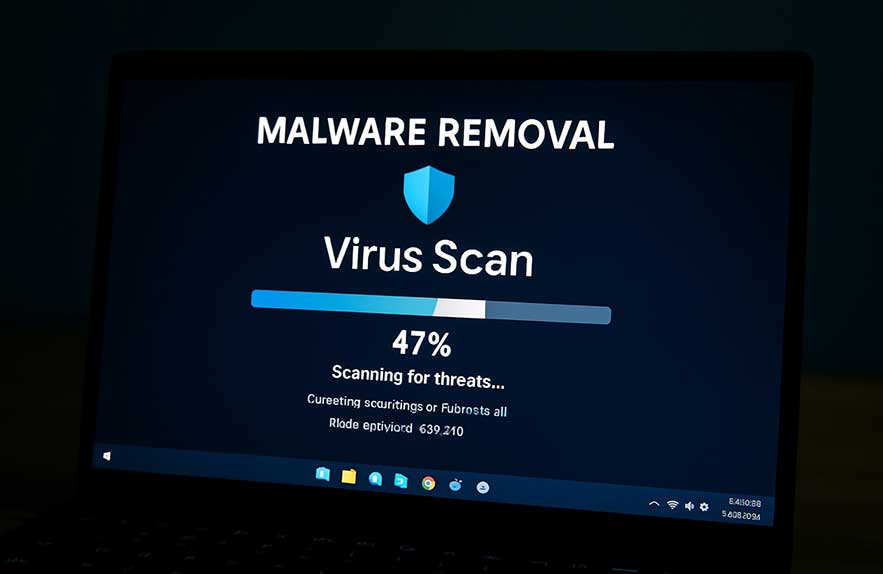
Once it’s installed, run a full system scan — not just a quick one. Quick scans are faster, but they often miss deeper threats buried in system folders or startup files. The full scan might take a while, but if you want reliable results and full free malware protection, it’s worth the extra time. Grab a coffee, let the scan do its job, and don’t interrupt the process.
After the scan finishes, your malware removal tool will present a list of detected threats. At this point, don’t panic — most programs make it easy to deal with what they find. Choose to quarantine or delete the suspicious files based on the tool’s recommendations. Quarantining is the safer route if you’re unsure, since it moves the files to a safe location where they can’t run but can be restored if needed. Most of the best antivirus 2025 tools make this process painless, even for beginners.
Once you’ve quarantined or removed the threats, restart your computer. This helps reset any lingering background processes and allows Windows to reload without interference. After the reboot, it’s a smart move to run one more full scan. Why? Some forms of malware are persistent — they hide, duplicate themselves, or attempt to recover after deletion. A second scan increases your confidence that the infection is truly gone. If your chosen tool offers scheduling, you might also want to set up a weekly scan as a fallback layer of free malware protection.
Now that you’ve cleaned things up, keep an eye on your system’s behavior. Are apps loading faster? Is your browser back to normal? No more pop-ups or mystery toolbars? If so, great — your cleanup likely worked. But if things still feel off, don’t hesitate to run a different lightweight antivirus software as a second opinion. No single scanner catches everything 100% of the time, which is why having a backup plan (like keeping a second trusted free tool on hand) is smart. Regular maintenance and smart browsing habits go a long way toward staying malware-free.
Key Features to Avoid in “Free” Malware Tools (Red Flags)
Not all free malware tools are created with your best interest in mind. In fact, some of them are downright shady. If you’ve ever downloaded a program that claimed to clean your system, only to demand payment the moment it found something, you’ve likely run into scareware — and it’s more common than you’d think. That’s why even when you’re looking for the best free malware removal solution, it’s just as important to know what to avoid as it is to know what to install.
One of the biggest red flags? A scanner that runs a free scan but locks removal behind a paywall. These tools lure users in with promises of free malware protection, only to deliver an ultimatum after listing out “threats” — some of which might not even be real. If a program finds dozens of critical issues in seconds and then refuses to fix them without your credit card, that’s not security — it’s marketing with a shady edge.
Also beware of tools that seem overly dramatic with their alerts. Flashing red warnings, countdown timers, and language like “Your PC is at EXTREME risk!” are classic scare tactics. Reliable programs don’t need theatrics. They inform you of problems clearly, calmly, and without pressure. The best free malware removal tools are upfront about what they offer, and they won’t try to guilt you into upgrading with fake urgency or exaggerated threats.
Another sneaky tactic you’ll often see with sketchy tools is bundled bloatware. You install what you think is a free virus scanner, and suddenly your browser is full of new toolbars, your homepage is hijacked, and you’re getting pop-ups every time you open a tab. Some “free” malware tools are actually just vehicles for even more adware. Always watch for optional installs during setup — especially those pre-checked boxes that quietly add extra software you didn’t ask for.
It’s not just about what’s included, but what’s missing too. A tool might look clean on the surface but rely on an outdated malware definition database. If your software isn’t regularly updated, it won’t catch new threats — plain and simple. This is especially important in 2025, when malware evolves quickly and older detection engines fall behind fast. Even a lightweight antivirus software needs to stay fresh if it’s going to be effective. If a program hasn’t seen updates in months or doesn’t clearly display its version history, that’s a huge red flag.
And let’s not forget support — or the lack of it. If a malware removal tool doesn’t have a proper website, documentation, or even a support email, that’s usually a sign you’re on your own if something goes wrong. The best free tools don’t just work well — they’re backed by companies that continue to invest in user protection and transparency. If it feels like the program came out of nowhere and no one stands behind it, it’s probably not worth trusting with your system.
Lightweight Tools for Old PCs or Low Storage Devices
If you’re running an older laptop or a low-spec desktop, you’ve probably noticed one thing — some antivirus software feels like a resource hog. Your system slows to a crawl, fans spin up for no reason, and even opening your browser feels like a workout. That’s because traditional security suites often come packed with features that demand a lot of memory, CPU power, and storage. For budget systems, this just doesn’t work.
But here’s the good news: you don’t have to sacrifice protection just because you’re using aging hardware. Many of the best free malware removal tools in 2025 are built with efficiency in mind. Instead of layering on performance-draining extras, they focus on core features — fast scanning, accurate detection, and a minimal system footprint. That means you can still get reliable free malware protection without watching your device grind to a halt.
Look for tools that market themselves specifically as lightweight antivirus software. These usually run fewer background processes, avoid redundant services, and don’t come bundled with things like VPNs, password managers, or browser extensions you may never use. For systems with limited RAM or small SSDs, every megabyte counts — and stripping out the fluff makes a real difference in how usable your machine feels during a scan.
Some of the most trusted names in security now offer free virus scanners that run effortlessly even on older hardware. Microsoft Defender, built into Windows, remains one of the top choices for low-impact protection. It’s already installed, updated regularly, and integrates with Windows security features without bloating your system. For a full overview of how Defender protects your PC in real time, you can check Microsoft’s official Windows security page.
Another great option is Bitdefender Free Edition. It’s known for its minimal design, silent background scans, and solid detection engine — all while using very little memory. It doesn’t nag you with pop-ups or try to upsell premium features at every turn. Just install it and let it quietly do its job. If you’re looking for free malware protection that won’t choke your old laptop, Bitdefender is one of the safest bets out there.
Once you’ve picked your tool, a few smart settings can help keep things running even smoother. Turn off scheduled scans during work hours and set them for times when your PC isn’t in use. Disable unnecessary startup entries in Windows to free up RAM. And if your storage is nearly full, consider cleaning out temporary files or moving large files to an external drive. A lightweight antivirus software is only half the battle — a little system cleanup goes a long way toward keeping your old machine feeling snappy and safe.
Frequently Asked Questions (FAQ)
What’s the difference between antivirus and anti-malware?
Antivirus software was originally designed to catch and block traditional viruses — the kind that replicate and spread across systems. Anti-malware, on the other hand, focuses on a broader range of modern threats like spyware, adware, keyloggers, and ransomware. These days, most tools combine both. So while the terms still exist, the best free malware removal tools in 2025 typically act as all-in-one protection — scanning for both viruses and newer, more complex types of malware.
Can you fully protect a PC using only free tools?
Yes — if you choose wisely and stay alert. A combination of a trusted free antivirus and a reliable malware scanner can give you excellent protection without spending a dime. Many people run Microsoft Defender for background defense and something like Malwarebytes Free for on-demand cleanup. Add in smart browsing habits, and you’re well-covered for most day-to-day threats. Just keep both tools updated, and you’re good to go.
Is Malwarebytes Free safe and effective in 2025?
Absolutely. Malwarebytes Free remains one of the most respected free virus scanners on the market. While it doesn’t offer real-time protection in its free tier, it excels at detecting and removing threats during full scans. It’s especially good at finding adware, PUPs (potentially unwanted programs), and browser hijackers that some traditional antivirus tools miss. For occasional deep cleaning, it’s a solid addition to any protection plan.
Can malware removal fix system crashes?
It depends on what’s causing the crashes. If malware is the root of the issue — corrupting files, interfering with system processes, or hogging memory — then yes, removing it can bring things back to normal. But not all crashes are malware-related. Hardware issues, outdated drivers, or bad updates can also be the culprit. Still, running a scan is a smart first step when your system becomes unstable.
Should I run malware tools alongside antivirus?
In most cases, yes — but with caution. Using a dedicated antivirus (like Microsoft Defender or Bitdefender Free) alongside a free malware scanner like Malwarebytes can give you broader protection. Just avoid running two real-time engines at once, as they can conflict and slow down your system. It’s usually best to use one real-time antivirus and keep the second tool for occasional manual scans.

Georgijus
Founder of LivePCTech, Georgijus is a full-stack engineer with 16+ years of experience in hosting, DevOps, Linux/Windows systems, and backend software development.
→ Learn more about Georgijus