Windows Tips

Boost your Windows performance with tips, fixes, and setup guides for Windows 11 and beyond. Easy to follow, always useful.

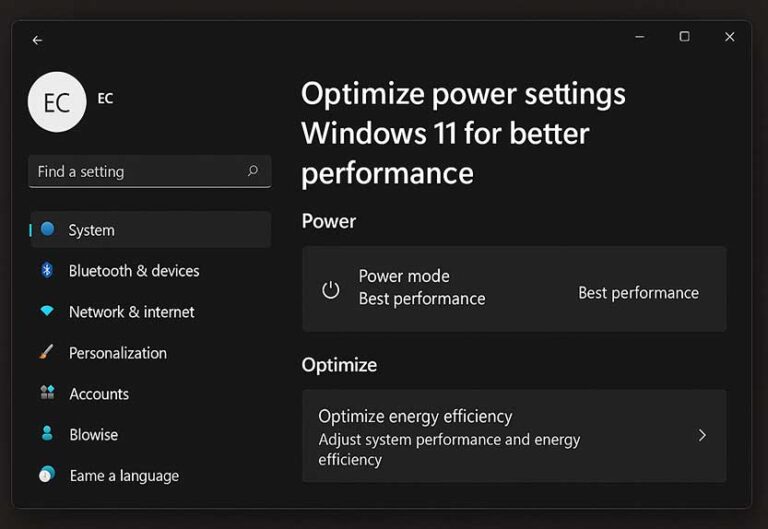
Optimize power settings Windows 11 for better performance

How to Optimize Power Settings in Windows 11 for Performance

Let’s say your laptop is running fine one minute, then suddenly feels like it’s dragging the next. Or maybe your desktop sounds like a jet engine even though you’re just browsing the web. In many cases, what’s happening behind the scenes has everything to do with your power settings in Windows 11. These settings quietly manage how your system handles energy. They affect how fast your CPU responds, how quickly your screen shuts off, when your hard drive powers down,…

How to Optimize Power Settings in Windows 11 for Performance Read More »

Disable animations Windows 11 to improve speed

How to Disable Animations in Windows 11 for Speed

Windows 11 is packed with small animations — windows that fade in, menus that slide, and subtle transitions when switching between apps. They’re designed to make things feel smooth and modern. But if your PC isn’t exactly high-end, these animations can actually slow things down.

Every animation takes a bit of power to render. On newer machines, that impact is barely noticeable. But on older laptops or systems with limited RAM or slower storage, these effects start to get in the…

How to Disable Animations in Windows 11 for Speed Read More »

Fixing disk usage 100 in Windows 11 using Task Manager

How to Fix 100% Disk Usage in Windows 11

If your computer feels like it’s dragging — apps slow to launch, system freezing randomly — and you pop open Task Manager only to see “disk usage 100%,” you’re not alone. It’s one of the most frustrating things Windows users deal with, and it often shows up without warning.

But what exactly does “disk usage 100” mean? It’s not referring to how much storage space you’ve used — that’s a totally different thing. Instead, it means your disk is currently being…

How to Fix 100% Disk Usage in Windows 11 Read More »

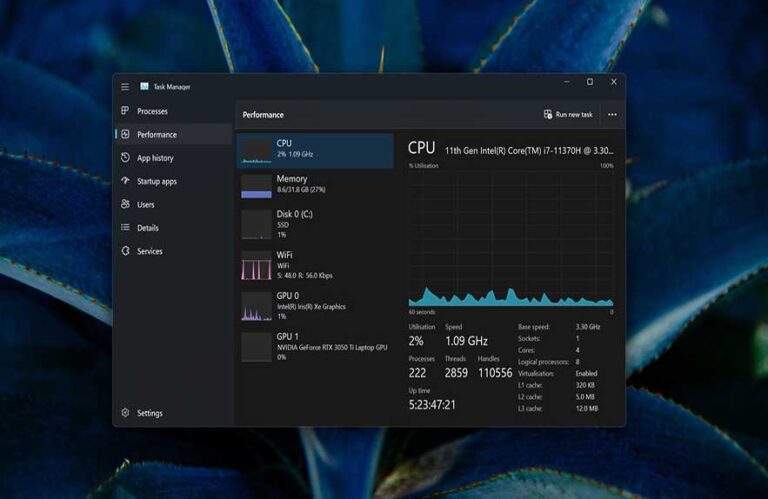
Task Manager speeding up a Windows 11 PC

How to Use Task Manager to Speed Up Your PC

Ever opened your laptop, clicked a few things, and suddenly everything’s crawling? Apps freeze, the fan kicks into high gear, and you’re wondering what just happened. This is exactly when Task Manager becomes your best friend.

The Process Manager isn’t just a way to close frozen apps — it’s a full control panel for your PC’s performance. It shows you what’s running, what’s using your memory, how busy your CPU is, and even how your disk and network are holding up….

How to Use Task Manager to Speed Up Your PC Read More »

Check Windows version on a laptop via System Settings

How to Check Your Windows Version and Build Number

Ever had a program refuse to install or Windows tell you that you’re missing an update you were sure you had? That’s exactly when knowing how to check your Windows version becomes important. It’s one of those things you don’t need often — until suddenly, you really do.

Your Windows version affects everything from driver compatibility to whether certain features, updates, or apps will work. Ever wondered why one PC can run a specific tool but another can’t? Nine times out…

How to Check Your Windows Version and Build Number Read More »

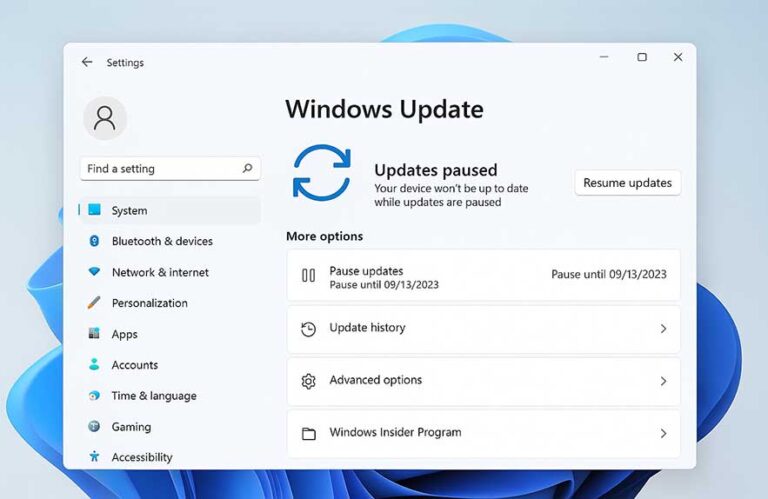
How to stop Windows 11 update using the pause updates setting

How to Stop Auto Updates in Windows 11 (Step-by-Step)

If you’ve ever had your PC restart in the middle of a game, a video call, or a late-night work session, you know how frustrating automatic updates can be. Many users are now actively searching how to stop Windows 11 update prompts from taking over at the worst possible time. The update system is more aggressive than ever, applying patches in the background and forcing reboots that often catch people off guard.

To be fair, updates serve a purpose. They patch…

How to Stop Auto Updates in Windows 11 (Step-by-Step) Read More »

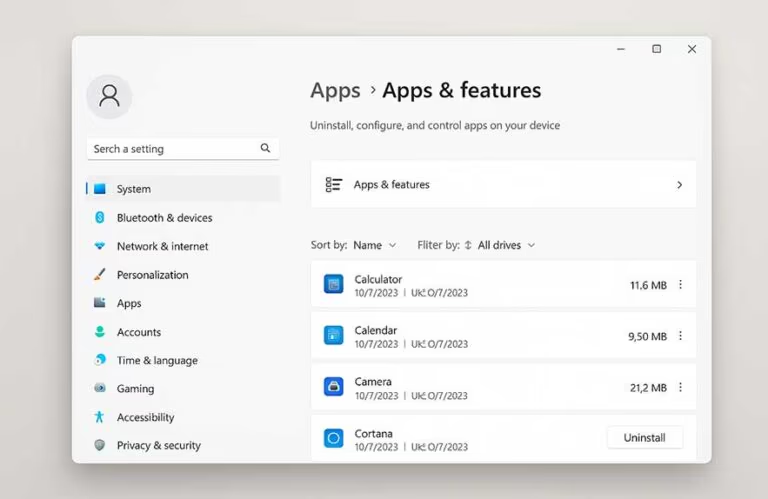
How to uninstall apps on Windows 11 using the apps & features menu

How to Uninstall Built-In Apps in Windows 11 (Step-by-Step)

When you first boot up a new Windows 11 PC, one thing’s immediately clear—it comes with a lot of extras. From Microsoft Teams and Xbox Game Bar to Weather, News, and other apps you might never use, Windows 11 built in apps often feel more like a bundle deal than a clean slate. This is where the line between helpful tools and bloatware starts to blur.

Now, there’s a reason behind it. Microsoft wants to create a ready-to-go environment with productivity…

How to Uninstall Built-In Apps in Windows 11 (Step-by-Step) Read More »

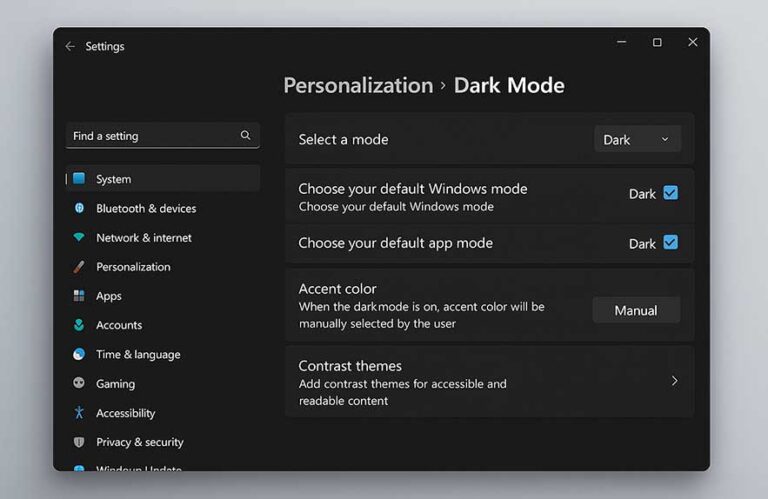
Windows 11 dark mode settings screen with dark theme enabled

How to Enable Dark Mode in Windows 11 (Step-by-Step)

Windows 11 dark mode changes the way your screen feels, especially if you’re someone who spends hours in front of it. Instead of bright whites lighting up every menu and background, it switches the entire interface to a darker color palette. You’ll notice the shift in your taskbar, Start menu, File Explorer, and even built-in apps like Settings or Photos.

Why use it? For starters, it’s easier on the eyes. Whether you’re up late replying to emails or just prefer a…

How to Enable Dark Mode in Windows 11 (Step-by-Step) Read More »

windows 11 turn off notification suggestions using system settings screen

How to Disable Notifications in Windows 11 (Step-by-Step Guide)

Windows 11 turn off notification suggestions—have you ever typed that into Google after a busy day of pop-ups and distraction? Here’s the thing: notifications used to be helpful reminders, but these days, Windows 11 can feel like it is always nudging you about tips, upgrades, and features you never wanted in the first place. The truth is, all these background banners, sounds, and “finish setup” alerts end up turning your sleek desktop into a minefield of interruptions.

Imagine this: you…

How to Disable Notifications in Windows 11 (Step-by-Step Guide) Read More »

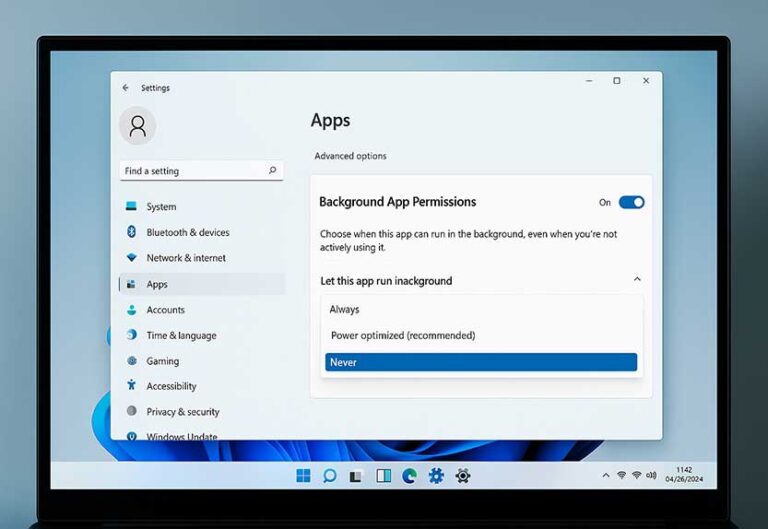
turn off background apps in windows 11 using settings app on a laptop screen

How to Turn Off Background Apps in Windows 11 (Step-by-Step Guide)

Turn off background apps Windows 11—ever caught yourself typing this into a search box right after your computer froze during a crucial moment? Here’s the thing: modern Windows machines juggle more background tasks than ever, and many run without you even realizing it. The truth is, these apps are quietly munching through your RAM, CPU, and sometimes even your battery, and that can leave your PC feeling unmotivated, slow, or annoyingly hot. Imagine this: you have only a few programs…

How to Turn Off Background Apps in Windows 11 (Step-by-Step Guide) Read More »